
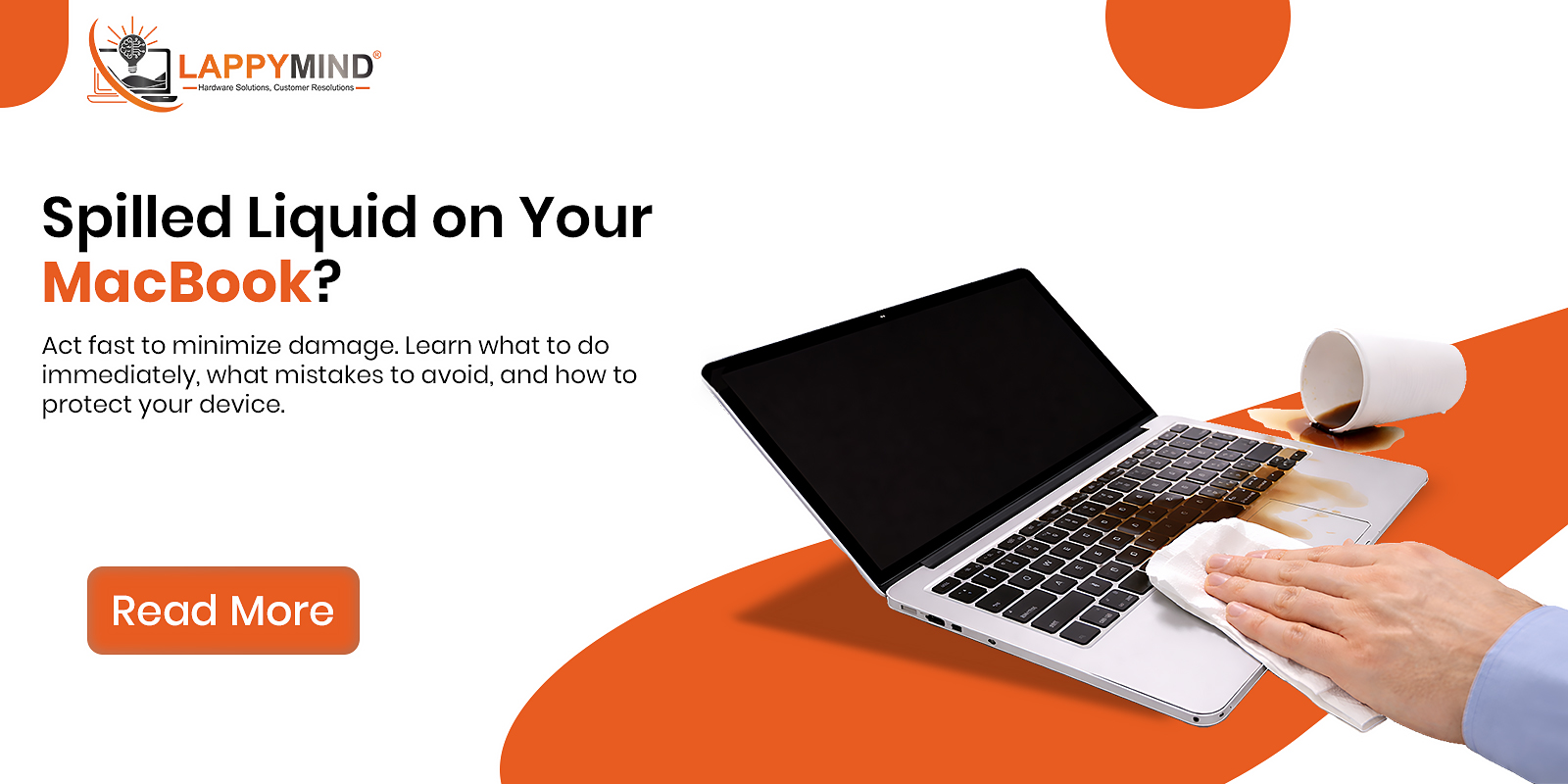
Accidentally spilling water, coffee, or any liquid on your MacBook can be a nightmare. Liquid damage is one of the most common and serious issues MacBook users face, often leading to costly repairs or permanent damage if not handled properly.
In this comprehensive guide, we’ll explore MacBook liquid damage, its causes, what immediate actions you should take, and the best repair options available to save your device.
What is MacBook Liquid Damage?
MacBook liquid damage occurs when any form of liquid—such as water, tea, coffee, or juice—enters the internal components of the device. Unlike minor external damage, liquid exposure can affect critical parts like the logic board, keyboard, battery, and display.
Even a small spill can cause:
- Short circuits
- Corrosion
- System failure
Common Causes of MacBook Liquid Damage
Understanding the causes can help prevent such incidents in the future.
1. Accidental Spills
- Coffee or tea while working
- Water bottles leaking in bags
- Drinks placed near the laptop
2. Rain or Moisture Exposure
- Carrying MacBook in light rain without protection
- High humidity environments
3. Cleaning Mistakes
- Using excessive liquid cleaners
- Spraying directly onto the screen or keyboard
4. Internal Condensation
- Sudden temperature changes
- Moving from cold to warm environments
Immediate Actions After Liquid Spill on MacBook
Taking the right steps immediately can significantly reduce damage.
1. Turn Off Your MacBook Immediately
- Press and hold the power button
- Do not try to save work or continue using
This prevents short circuits.
2. Disconnect All Accessories
- Remove charger
- Unplug USB devices
- Disconnect external displays
3. Dry the Exterior
- Use a soft cloth to wipe visible liquid
- Avoid shaking the device aggressively
4. Flip the MacBook
Place it in an inverted “V” shape:
- Keyboard facing downward
- Allows liquid to drain out
What NOT to Do
Avoid these common mistakes:
- Do not use a hairdryer (can push liquid deeper)
- Do not turn it on to check
- Do not put it in rice (ineffective for internal moisture)
How Liquid Damages a MacBook Internally
Liquid damage doesn’t just stop at the surface—it spreads quickly inside.
1. Short Circuits
When liquid connects electrical paths:
- Instant damage to logic board
- Device may shut down permanently
2. Corrosion
Over time, liquid residue causes:
- Rust on components
- Gradual failure even after drying
3. Component Failure
Key parts affected:
- Keyboard (sticky or non-functional keys)
- Trackpad issues
- Screen flickering or black display
- Battery malfunction
MacBook Liquid Damage Repair Options
Once your MacBook is exposed to liquid, professional repair is often required.
1. MacBook Liquid Damage Cleaning
- Internal cleaning using specialized solutions
- Removes corrosion and residue
Works best if done quickly after the spill.
2. Logic Board Repair
The logic board is the most critical component.
Repair includes:
- Chip-level repair
- Replacing damaged circuits
More affordable than full replacement.
3. Keyboard Replacement
If keys stop working:
- Entire keyboard assembly is replaced
4. Screen Replacement
Liquid can damage display layers, causing:
- Flickering
- Lines
- Black spots
5. Full Component Replacement
In severe cases:
- Battery
- SSD
- Trackpad
may need replacement.
MacBook Liquid Damage Repair Cost (India)
Costs vary depending on severity:
| Repair Type | Estimated Cost |
|---|---|
| Cleaning & servicing | ₹2,000 – ₹5,000 |
| Keyboard replacement | ₹5,000 – ₹12,000 |
| Logic board repair | ₹8,000 – ₹25,000 |
| Screen replacement | ₹12,000 – ₹30,000 |
Early repair = lower cost.
Can a Water-Damaged MacBook Be Fixed?
Yes, but success depends on:
- How quickly you acted
- Type of liquid (water vs sugary drinks)
- Extent of internal damage
Clean water damage is easier to repair compared to:
- Coffee
- Soda
- Alcohol
because they leave residue.
Expert Tips to Prevent MacBook Liquid Damage
1. Keep Liquids Away
Always maintain distance between drinks and your MacBook.
2. Use Keyboard Covers
Acts as a protective layer against minor spills.
3. Invest in a Waterproof Bag
Essential for travel and daily commute.
4. Avoid Using in Risky Environments
- Near swimming pools
- In kitchens
- During rain

When Should You Seek Professional Help?
Immediately visit a repair expert if:
- MacBook won’t turn on
- Keyboard stops responding
- Screen behaves abnormally
- Burning smell or overheating
Delaying repair can worsen the damage due to corrosion.
Why Professional MacBook Repair is Important
MacBooks are complex devices, and DIY fixes can make things worse.
Professional technicians:
- Use proper diagnostic tools
- Perform chip-level repairs
- Ensure safe cleaning processes
Conclusion
MacBook liquid damage and spill issues are serious but manageable if handled correctly. Immediate action plays a crucial role in minimizing damage, while professional repair ensures your device is restored safely.
If your MacBook has suffered a liquid spill, don’t delay—quick response and expert repair can save your device and reduce costs significantly.

One thought on “MacBook Liquid Damage & Spill Issues: Causes, Immediate Actions & Repair Options”